Settings reference
Every Elite Balance setting on one page, with defaults and what each one actually changes.
WooCommerce → Settings → Elite Balance
The tab is split into five sections, shown as the standard WooCommerce sub-navigation links under the tab bar (the same pattern as Products or Tax): General, Top-ups, Earning, Withdrawals, and Advanced. One feature per screen, so nothing scrolls forever and each screen saves independently.
General
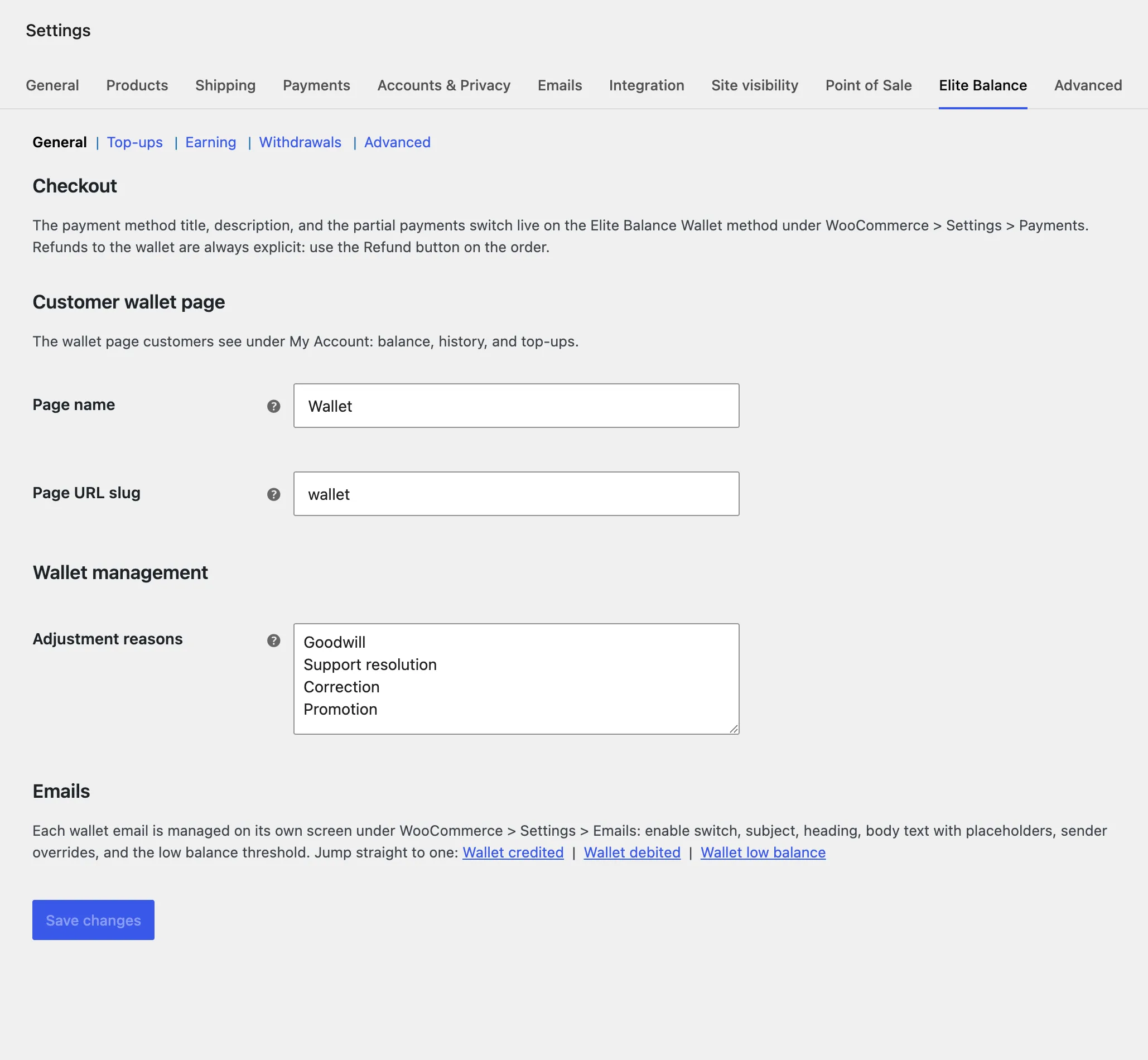
Opens with a pointer to the gateway settings: the checkout switches live with the gateway (below), where WooCommerce keeps all payment configuration. Then the customer wallet page:
| Setting | Default | What it does |
|---|---|---|
| Page name | Wallet | The My Account menu label and page title. |
| URL slug | wallet | The address segment (/my-account/wallet/). Routing refreshes automatically on change. |
| Adjustment reasons | Four sensible presets | One reason per line. Staff must pick one when crediting or debiting a wallet manually; the reason is stored in the ledger. |
The section closes with direct links to the wallet email screens (each email is managed under WooCommerce → Settings → Emails; see below).
Top-ups
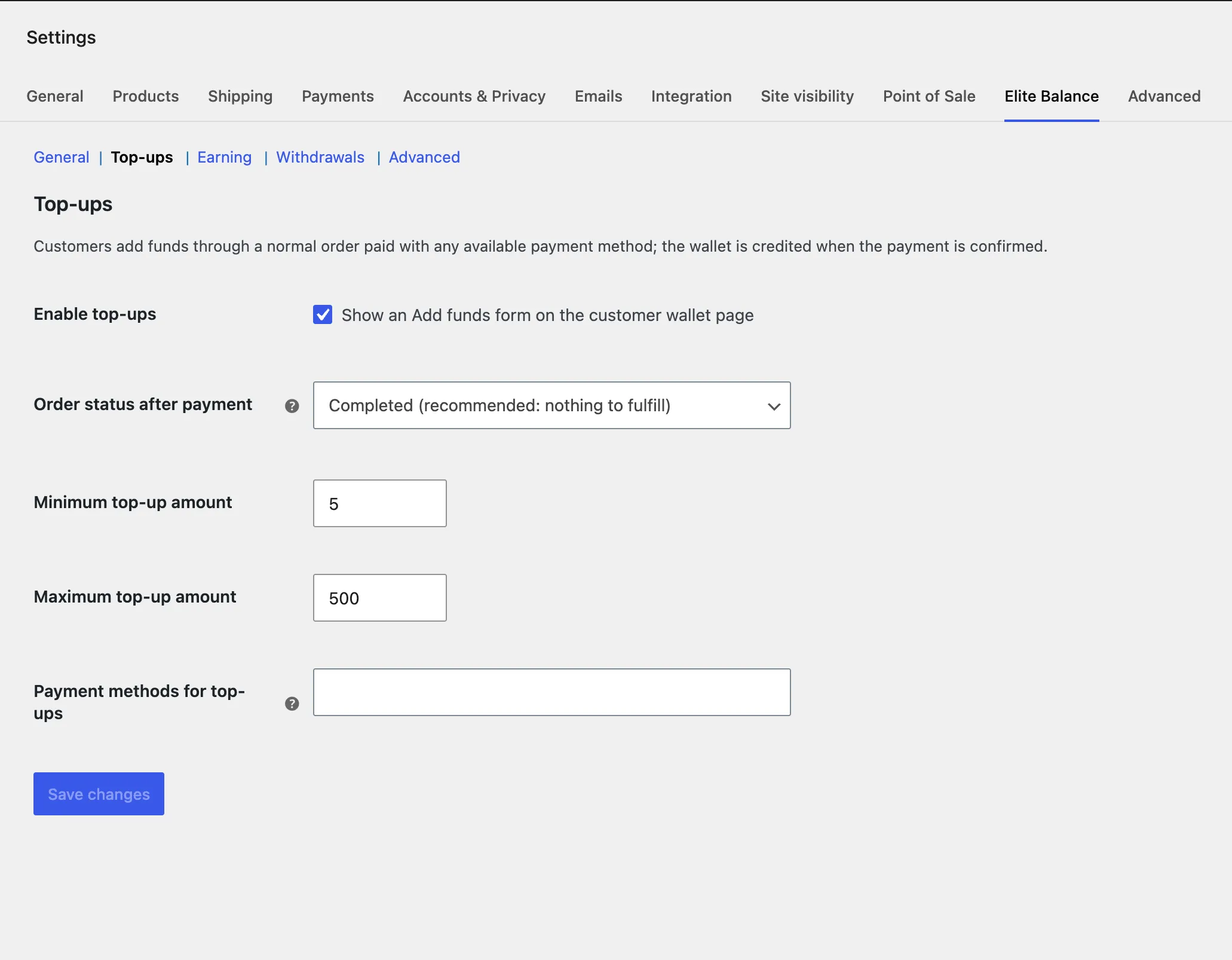
| Setting | Default | What it does |
|---|---|---|
| Enable top-ups | Off | Master switch for the top-up form. |
| Minimum amount | 5 | Smallest allowed top-up. |
| Maximum amount | 500 | Largest allowed top-up. |
| Allowed gateways | All (except the wallet) | Which payment methods may fund a wallet. |
| Paid order status | Completed | Where a successful top-up order lands; nothing ships, so Completed fits most stores. |
Earning
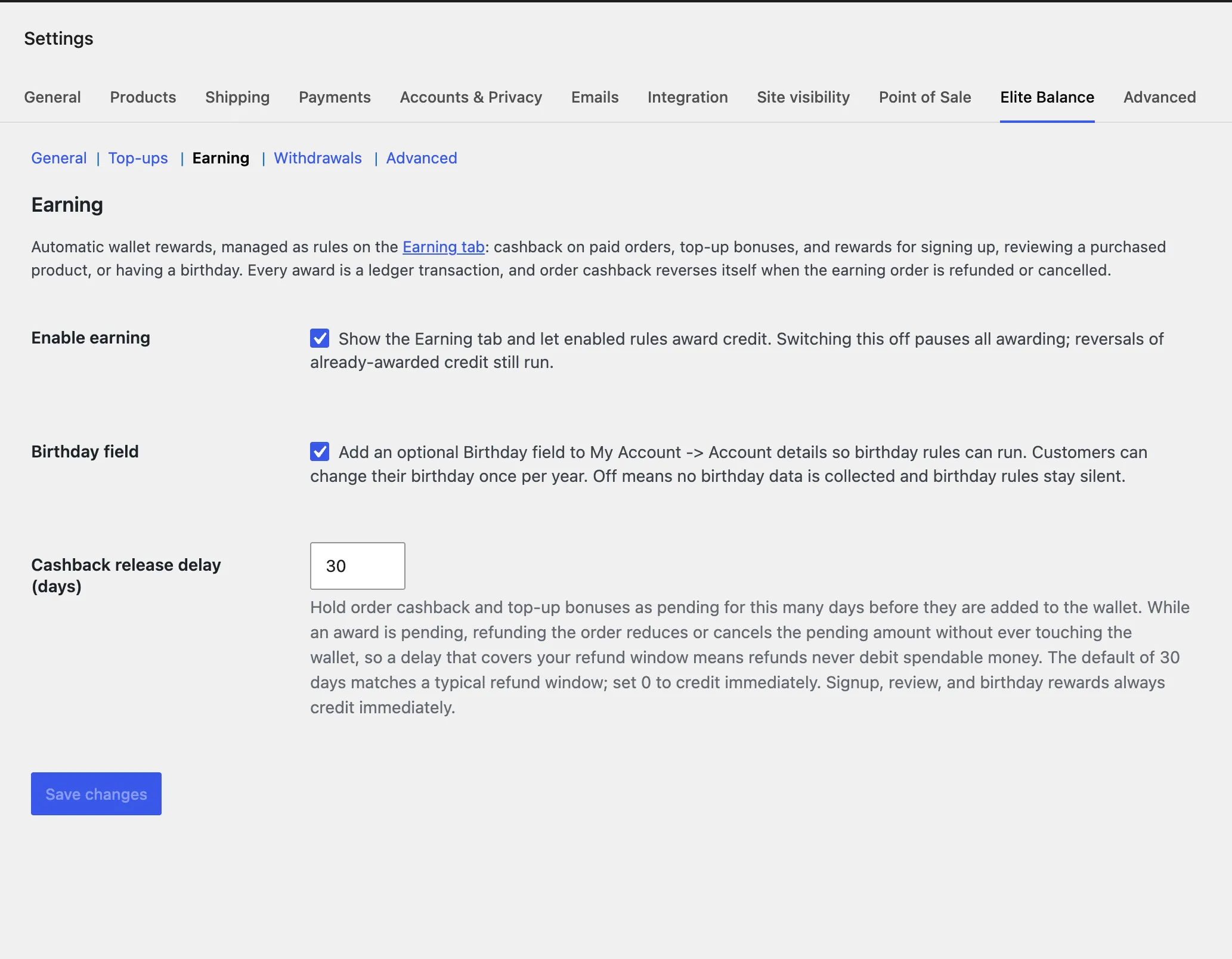
Automatic wallet rewards, managed as rules on the Earning tab (the section description links straight to it, and the Earning tab links back here). The full trigger and reversal semantics live in Earning rules.
| Setting | Default | What it does |
|---|---|---|
| Enable earning | On | Shows the Earning tab and lets enabled rules award credit. Switching it off pauses all awarding; reversals of already-awarded credit still run, and the tab stays reachable while rules exist. |
| Birthday field | Off | Adds an optional Birthday field to My Account -> Account details so birthday rules can run. Customers can change their birthday once per year. Off means no birthday data is collected and birthday rules stay silent. |
| Cashback release delay (days) | 30 | Holds order cashback and top-up bonuses as pending for this many days before crediting them; refunds inside that window reduce or cancel the pending amount without ever touching the wallet. The default matches a typical 30-day refund window; set 0 to credit immediately. Signup, review, and birthday rewards always credit immediately. Awards already pending keep their original release date if the setting changes. Details in Earning rules. |
Withdrawals
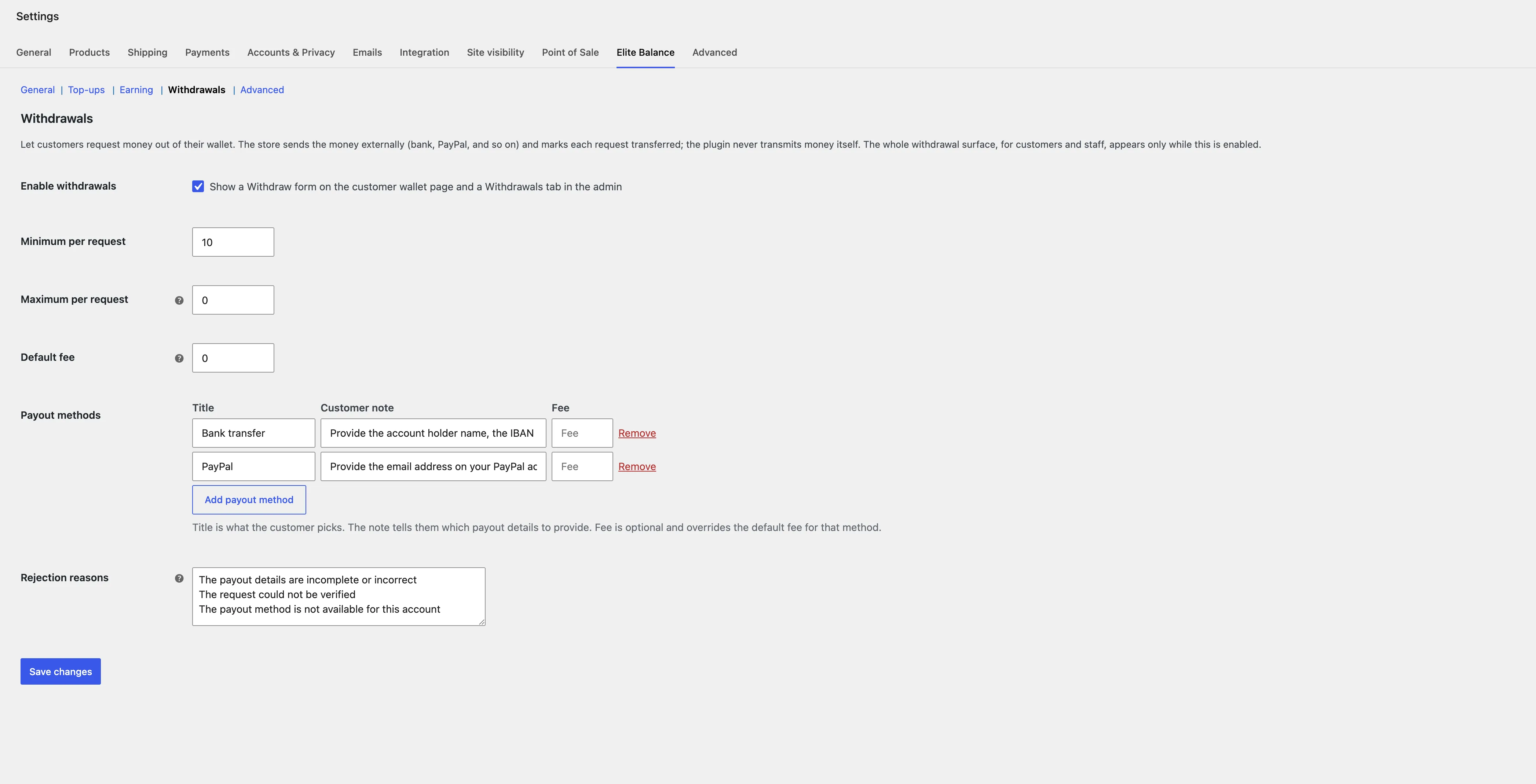
Customers request money out of their wallet; the store sends it externally and marks each request transferred. The plugin never transmits money itself. The whole surface, customer and staff, appears only while this is on. The full lifecycle, fee semantics, and queue workflow live in the withdrawals guide.
| Setting | Default | What it does |
|---|---|---|
| Enable withdrawals | Off | Master switch. Shows the Withdraw form on the wallet page (and the admin Withdrawals tab). |
| Minimum per request | 10 | Smallest allowed request. |
| Maximum per request | 0 (no maximum) | Largest allowed request; 0 lifts the cap. |
| Default fee | 0 | The fallback flat fee, used by any payout method that does not set its own. A fee is deducted from the requested amount: the customer requests an amount, the wallet is debited that full amount when transferred, and the store sends the amount minus the fee. Staff can still change the fee on each request at transfer time. |
| Payout methods | Bank transfer, PayPal | An add/remove editor: each row has a title (what the customer picks), a note (which payout details to provide), and an optional fee that overrides the default fee for that row when set (leave it blank to use the default). Use “Add payout method” for another row, or the row’s “Remove” link to drop one. If JavaScript is off, the editor falls back to a raw list, one method per line as Title | note | fee, for example Bank transfer | Provide your IBAN and bank name | 2.00. The details a customer enters are visible only to wallet managers and are excluded from exports. |
| Rejection reasons | Three sensible presets | One reason per line. Staff pick one (or type their own) when rejecting a request on the admin Withdrawals tab; the chosen reason is shown to the customer. |
A request reserves the funds immediately (the balance stops being spendable) but no money moves until staff confirm the external payment. Cancelling or rejecting releases the reservation and nothing ever moved.
Requests are worked from WooCommerce → Elite Balance → Withdrawals: a queue with status views and customer search, and a detail view per request where staff mark it processing, mark it transferred (with the required transfer reference and an editable fee), or reject it with a reason. The tab appears while the feature is on, and stays as long as any request exists so history remains reachable after switching the feature off. The queue can export pending requests as a CSV for bank bulk files: payout details are excluded, and the reference column ships empty for staff to fill.
Payout details retention: the details a customer enters (IBANs, PayPal emails) are automatically blanked 30 days after a request reaches a terminal state (transferred, rejected, or cancelled). The request row and the ledger stay forever; only the payout coordinates are erased. The window is filterable (rb_elite_balance_withdrawal_details_retention_days).
Advanced
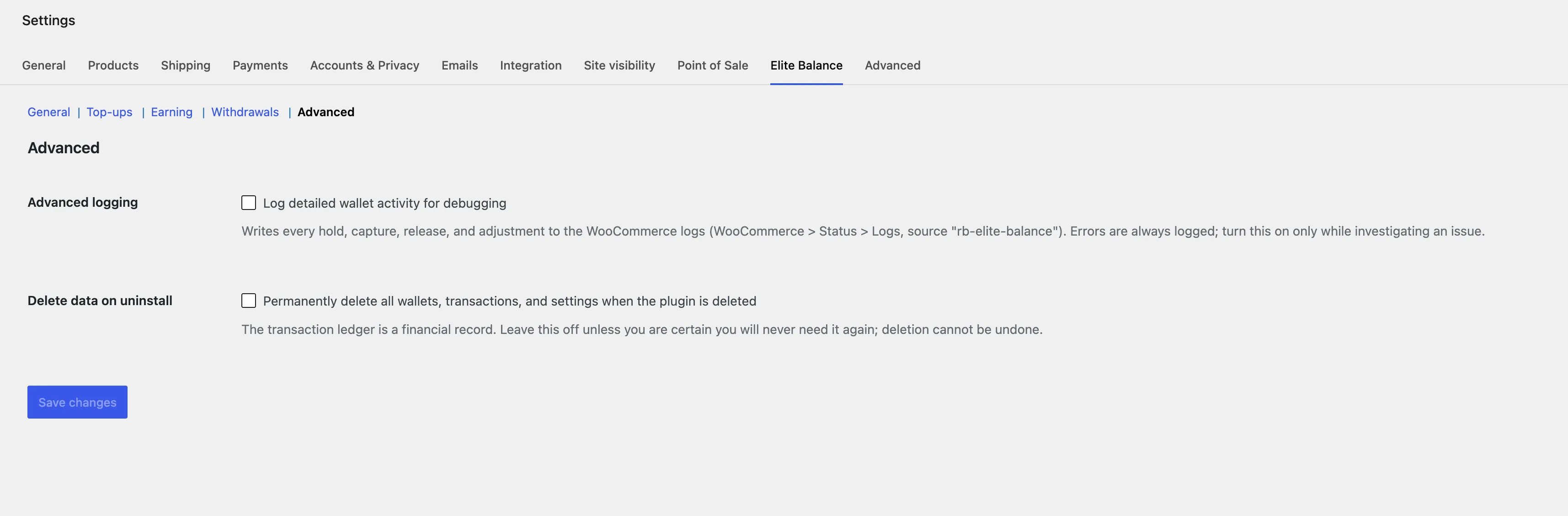
| Setting | Default | What it does |
|---|---|---|
| Advanced logging | Off | Writes every hold, capture, release, and adjustment to the WooCommerce logs (source elite-balance). Errors are always logged; turn this on only while investigating an issue. |
| Delete data on uninstall | Off | Permanently deletes all wallets, transactions, and settings when the plugin is deleted. The ledger is a financial record; leave this off unless you are certain. |
WooCommerce → Settings → Payments → Elite Balance Wallet
| Setting | Default | What it does |
|---|---|---|
| Enable | Off | Offers the wallet as a payment method to logged-in customers with a balance. |
| Title | Wallet balance | The name customers see at checkout. |
| Description | (sensible default) | The line under the title at checkout. |
| Partial payments | Off | Lets a balance smaller than the order cover part of it, remainder to any other gateway. |
| Pay-by-wallet discount | No discount | An automatic discount line on orders paid fully by wallet: a percentage of the items total or a fixed amount. Never on partial payments or top-ups; re-checked server side at order time; the line is untaxed. |
| Discount amount | (empty) | The percentage (up to 100) or the fixed amount in the store currency. A fixed discount never exceeds the items total. |
WooCommerce → Settings → Emails
Three wallet emails, each on its own screen: Wallet credited (on by default), Wallet debited (on), Wallet low balance (off, with its threshold setting, default 10). Plus four withdrawal emails: request received, transferred (with fee, net, and reference), rejected (with the reason), and a staff notification for new requests with a configurable recipient. Each screen has subject, heading, body text, and From overrides, with placeholders. Details in Wallet emails.
Every default is chosen so that activating the plugin changes nothing customer-visible until you deliberately switch something on.
Stuck, or found a gap in these docs? Tell us and the people who build the plugin answer.
Contact support →